Wilgens Sirise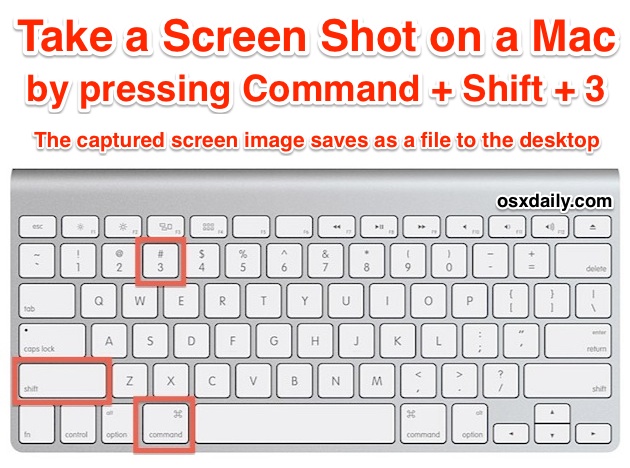
Taking a screenshot on a Mac is fast, simple, and incredibly useful—whether you want to save important information, create tutorials, share errors with tech support, or capture moments on your screen. macOS, developed by Apple, offers several built-in screenshot tools that don’t require any extra software. In this guide, you’ll learn all the ways to screenshot on a Mac, step by step.
1. Screenshot the Entire Screen
To capture everything visible on your Mac screen:
Press:
Command (⌘) + Shift + 3
✔️ Instantly captures the full screen
✔️ The screenshot is saved automatically to your Desktop
✔️ File format is usually PNG
This method is perfect when you need to capture everything at once, such as presentations or full webpages.

2. Screenshot a Selected Portion of the Screen
If you only need part of your screen:
Press:
Command (⌘) + Shift + 4
Your cursor turns into a crosshair.
👉 Click and drag to select the area you want to capture
👉 Release the mouse or trackpad to take the screenshot
This is one of the most commonly used screenshot methods because it gives you precision and control.

3. Screenshot a Specific Window or Menu
After pressing Command (⌘) + Shift + 4, then:
Press the Spacebar
Your cursor becomes a camera icon 📷
👉 Click on any window or menu to capture it cleanly
This method creates a neat screenshot without background clutter—great for apps, dialog boxes, or browser windows.
4. Use the Screenshot Toolbar (Best Option)
For full control, macOS includes a powerful screenshot panel.
Press:
Command (⌘) + Shift + 5
This opens the Screenshot Toolbar, where you can:
- Capture entire screen
- Capture a selected window
- Capture a selected portion
- Record your screen (video)
- Choose where screenshots are saved
- Set timers and options
This is the most advanced and user-friendly screenshot option on a Mac.
5. Screenshot the Touch Bar (If Available)
If your MacBook has a Touch Bar:
Press:
Command (⌘) + Shift + 6
This captures exactly what’s displayed on the Touch Bar.
6. Copy Screenshots to Clipboard Instead of Saving
Want to paste a screenshot directly into an email, document, or chat?
Just add the Control (⌃) key to any shortcut:
- Command + Control + Shift + 3 → Entire screen to clipboard
- Command + Control + Shift + 4 → Selection to clipboard
Then press Command (⌘) + V to paste.
7. Where Are Mac Screenshots Saved?
By default, screenshots are saved to your Desktop.
You can change the save location by opening the Screenshot Toolbar (Command + Shift + 5) and clicking Options.
Final Thoughts
Mac screenshots are powerful, flexible, and built right into macOS—no extra apps needed. Once you memorize a few shortcuts, capturing your screen becomes second nature. Whether you’re a student, content creator, business owner, or tech user, mastering Mac screenshots will save you time and boost productivity.
By.wilgens Sirise